








Opinion
Custom DynamoDB Resolvers to handle Subscriptions to External data source
Published on 25 Apr, 2023 by William
The Problem
We want to receive live updates from an external source while maintaining and using the auto-generated AWS Amplify code.
Overview
AWS Amplify goes a long way to assist us by auto-generating code to allow an application to query, mutate and subscribe to changes. We will use the default schema and their resolvers to allow for a custom resolver to handle data from an external source.
Let's begin
This is the plan of action.
1. Setup a new react-native project
2. AWS Amplify install and configure
3. GraphQL schema
4. Subscriptions from an external data source
5. AWS CloudFormation
6. The Lambda
7. AWS Amplify - Schema - Resolvers
8. Push data to test
React-native init and setup
The prerequisites and installation details are here:https://reactnative.dev/docs/getting-started
AWS Amplify install and configure
This is assuming you have installed and initialised AWS Amplify. This will not cover that process as it’s a common operation and the process is covered in detail here: https://docs.amplify.aws/cli/start/install
GraphQL Schema
For the purpose of this demo, we’ll have a very simple schema:
type Alarm @model {
  id: String
  name: String!
  state: String
}
The schema can be found in the root of the project. Once we make our change we can push it to auto-generate the code we need
./amplify/backend/api/<apiname>/schema.graphql
then run:
amplify pushThis will take the schema and generate the necessary code for queries, mutations and subscriptions.
The part we are interested in are the subscriptions.
Subscriptions is a GraphQL feature allowing the server to send data to its clients when a specific event happens. You can enable real-time data integration in your app with a subscription
The following code demonstrates how to reference the auto-generated subscription code and subscribe to the onUpdateAlarm subscription in our react-native code.
Note: complete react-native code is not listed here. Once we have the alarms in our useState, we can use that in whatever manner we choose e.g. display in a FlatList.
import * as subscriptions from '../../graphql/subscriptions';

// hook for alarms
const [alarms, setAlarms] = useState([]);

useEffect(() => {
   const subscription = API.graphql(
      graphqlOperation(subscriptions.onUpdateAlarm),
   ).subscribe({
      next: (data) => {
         // get the updated alarm
         const updatedAlarm = data.value.data.onUpdateAlarm;
         // update the alarm in our map
         let result = alarms.map((item) =>
            item.id === updatedAlarm.id ? updatedAlarm : item,
         );
         // update state using hook
         setAlarms(result);
       },
     });
   // we're done, let's unsubscribe
   return () => subscription.unsubscribe();
}, [alarms]);
At this point, we are subscribing to changes in a local AWS DynamoDB table.
What we want to do is subscribe to changes in a different database/datasource.
Subscriptions from an external data source
Let’s begin with an overview:

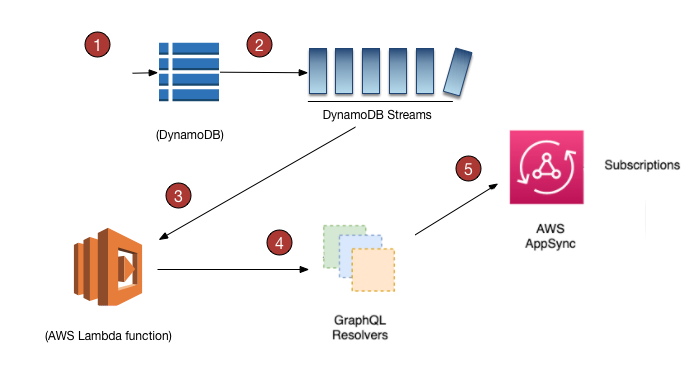
- Data is added to the DynamoDB table
- DB has streams enabled
- Records are streams into an AWS Lambda Fn
- The Fn will call a resolver mutation
- The mutation is configured to respond to the default subscriptions
AWS CloudFormation
Points 1, 2, and 3 are set up using the following AWS CloudFormation script:
AWSTemplateFormatVersion: 2010-09-09
Resources:
  # The dynamo db. Streams enabled
  demoAlarmDynamoDBTable:
    Type: AWS::DynamoDB::Table
    Properties:
      AttributeDefinitions:
        - AttributeName: "alarmId"
          AttributeType: "S"
        - AttributeName: "datetime"
          AttributeType: "S"
        - AttributeName: "readingId"
          AttributeType: "S"
      BillingMode: PAY_PER_REQUEST
      KeySchema:
        - AttributeName: "alarmId"
          KeyType: "HASH"
        - AttributeName: "datetime"
          KeyType: "RANGE"
      GlobalSecondaryIndexes:
        - IndexName: "GSI"
          KeySchema:
            - AttributeName: "readingId"
              KeyType: "HASH"
          Projection:
            ProjectionType: "ALL"
      StreamSpecification:
        StreamViewType: NEW_AND_OLD_IMAGES
      TableName: "DemoAlarms"
  # The Role. The role is used for the lambda
  demoAlarmsRole:
    Type: AWS::IAM::Role
    Properties:
      RoleName: DemoAlarmsLambdaRole
      AssumeRolePolicyDocument:
        Statement:
          - Effect: Allow
            Principal:
              Service: lambda.amazonaws.com
            Action: sts:AssumeRole
  # The Policy. Used by lambda and for logging to CloudWatch
  DemoAlarmsManagedPolicy:
    Type: 'AWS::IAM::Policy'
    Properties:
      PolicyName: DemoAlarmsPolicy
      Roles:
        - DemoAlarmsLambdaRole
      PolicyDocument:
        Version: '2012-10-17'
        Statement:
          - Effect: Allow
            Action:
              - 'lambda:InvokeFunction'
            Resource: !Sub "${DemoAlarmsLambda.Arn}"
          - Effect: Allow
            Action:
              - 'logs:CreateLogGroup'
              - 'logs:CreateLogStream'
              - 'logs:PutLogEvents'
            Resource: arn:aws:logs:*:*:*
          - Effect: Allow
            Action:
              - 'dynamodb:DescribeStream'
              - 'dynamodb:GetRecords'
              - 'dynamodb:GetShardIterator'
              - 'dynamodb:ListStreams'
            Resource: !Sub "${demoAlarmDynamoDBTable.StreamArn}"
  # The Lambda. The function this is uesd by the db stream to handle the records
  DemoAlarmsLambda:
    Type: AWS::Lambda::Function
    Properties:
      FunctionName: DemoAlarmsLambdaFn
      Handler: index.handler
      Role: !GetAtt demoAlarmsRole.Arn
      Code:
        ZipFile: !Sub |
          // the lambda code goes here. See below
          // we used inline code for this demo
      Runtime: nodejs12.x
  # The trigger, DependsOn is important here. It must be setup after the Policy exists to ge the correct arns
  DemoAlarmsEventSourceMapping:
    Type: AWS::Lambda::EventSourceMapping
    Properties:
      BatchSize: 1
      EventSourceArn: !Sub "${demoAlarmDynamoDBTable.StreamArn}"
      FunctionName: !Sub "${DemoAlarmsLambda.Arn}"
      StartingPosition: "TRIM_HORIZON"
    DependsOn: "DemoAlarmsManagedPolicy"
The CloudFormation stack can be deployed and deleted using the following:
aws cloudformation deploy --template-file cloud/cloudformation/setup.yaml --stack-name demo-alarms-stack --capabilities CAPABILITY_NAMED_IAM
aws cloudformation delete-stack --stack-name demo-alarms-stack
The Lambda
The lambda will be responsible for intercepting the record from the stream and creating a suitable request to send to the mutation.
;
var AWS = require("aws-sdk");
const https = require('https');
exports.handler = (event, context, callback) => {
event.Records.forEach((record) => {
console.log('Stream record: ', JSON.stringify(record, null, 2));
if (record.eventName == 'INSERT') {
const myData = {
"query": `
mutation MyMutation($alarmId : String, $readingId : String!, $state : String){
createAlarm(input: {id : $alarmId, name : $readingId, state : $state}){
state
name
id
updatedAt
createdAt
}
}
`,
"variables": {
"alarmId": record.dynamodb.NewImage.alarmId.S,
"readingId": record.dynamodb.NewImage.alarmId.S,
"state": record.dynamodb.NewImage.readingId.S,
"updatedAt": record.dynamodb.NewImage.datetime.S
}
};
const data=JSON.stringify(myData)
const options = {
host: 'dqunlwcy5fg5bkggtplzqdo6sq.appsync-api.eu-west-1.amazonaws.com',
path: '/graphql',
method: 'POST',
headers: {'Content-Type': 'application/json',
"X-Api-Key" : "<<apikey>>"}
};
var req = https.request(options, (res) => {
res.setEncoding('utf8');
console.log('Successfully processed HTTPS response');
res.on('data', (d) => {
console.log('data: ' + d);
process.stdout.write(d);
});
});
req.on('error', (e) => {
console.error(e);
//reject(e.message);
console.log('SHTTPS response error');
});
// send the request
req.write(data);
req.end();
}
});
callback(null, `Successfully processed records.`);
};
AWS AppSync - Schema - Resolvers
Points 4 and 5.
An important step in this process is to have a custom resolver to handle the incoming request from the lambda
Let’s look at the default resolvers for the Mutation type:

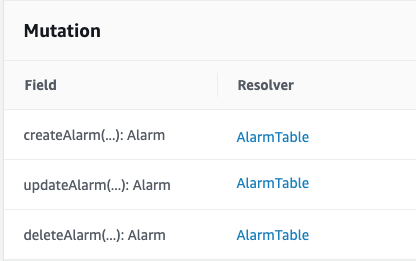
The default resolver will point to the DynamoDB that was set up as part of the configure command
Let’s create a new DataSource that has a data source as None.
While in AWS AppSync, click on Data Sources from the left menu
The new data source should look like this:

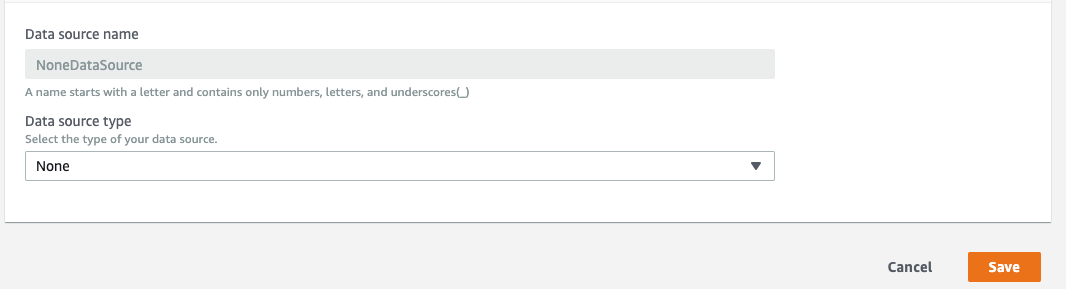
If we now go back to the Resolvers → Mutations, we can click on a resolver to change it to our new NoneDataSource.
Our final resolver screen should look like this:

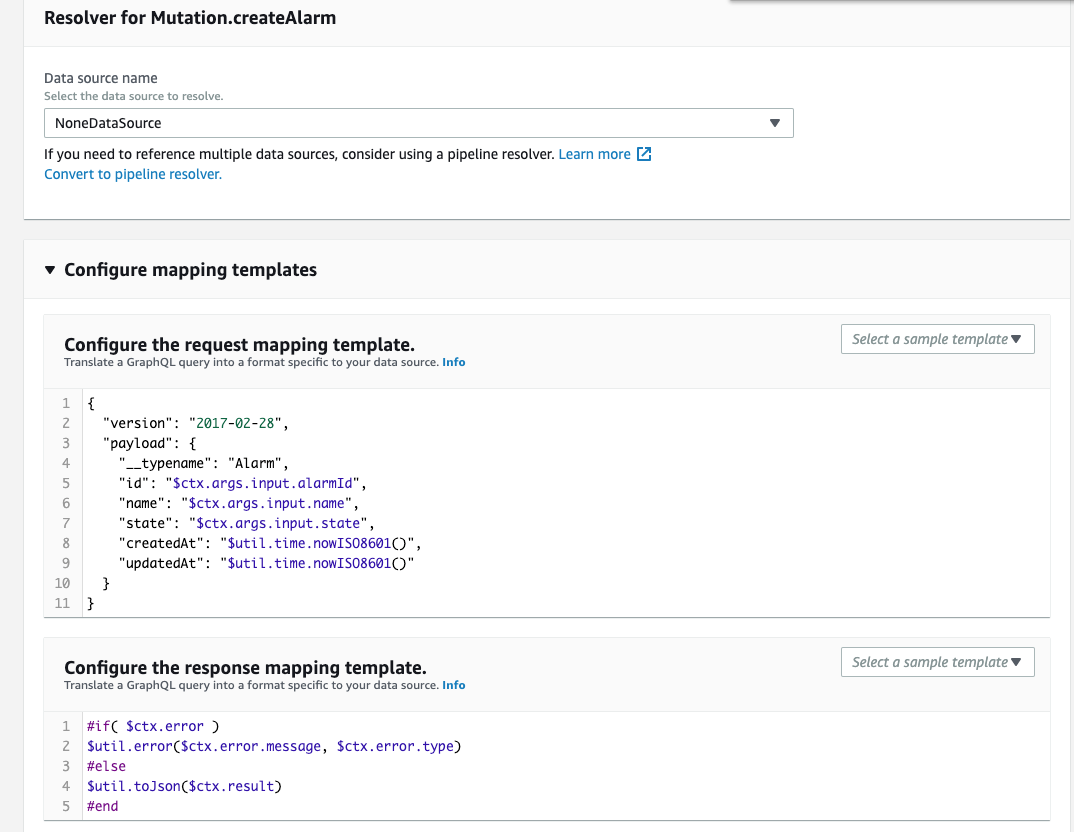
The mapping template should look like the following. It uses VTL (Velocity Template Language) syntax. See References for more details on the syntax/
{
  "version": "2017-02-28",
  "payload": {
    "__typename": "Alarm",
    "id": "$ctx.args.input.alarmId",
    "name": "$ctx.args.input.name",
    "state": "$ctx.args.input.state",
    "createdAt": "$util.time.nowISO8601()",
    "updatedAt": "$util.time.nowISO8601()"
  }
}
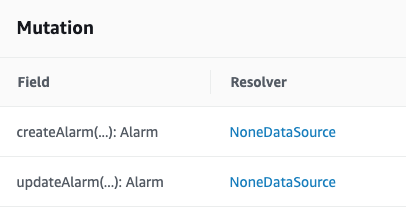
Now our Schema Mutations should look like this:

Push data to test
We can now push data to our new ‘external’ database and see the changes in the react-native view through the useState hook:
aws dynamodb put-item \
    --table-name DemoAlarms \
    --item alarmId={S="111-222-333-444"},datetime={S="2016-11-18:14:32:17"},readingId={S="12345"}
References
React-native - https://reactnative.dev/docs/getting-started
VTL reference - http://velocity.apache.org/engine/1.7/vtl-reference.html
Resolvers and VTL - https://docs.aws.amazon.com/appsync/latest/devguide/resolver-util-reference.html